
Audiobookshelf
Under Server → Audiobookshelf:
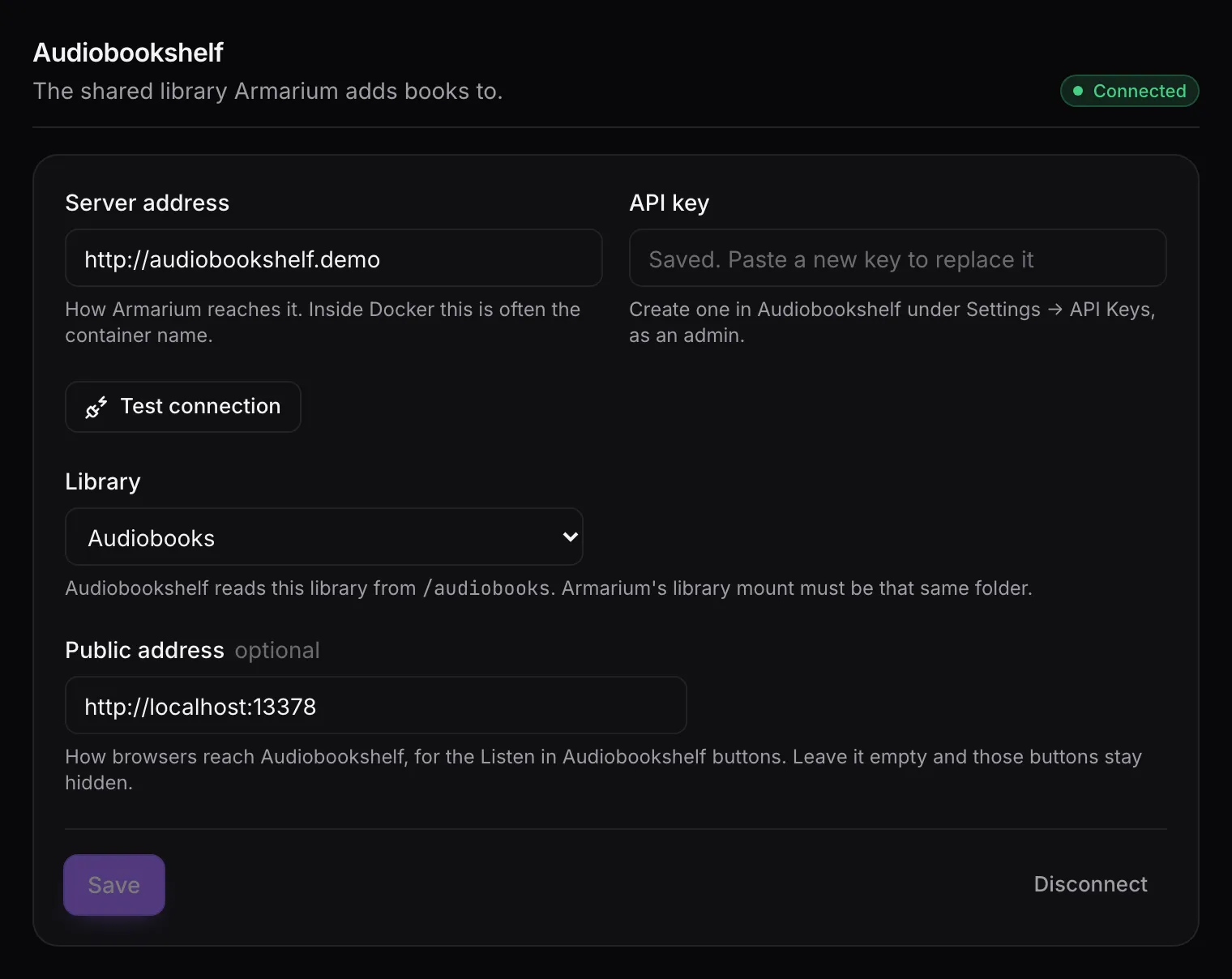
- Server address: how Armarium reaches Audiobookshelf. On a shared Docker network that’s often
the container name, like
http://audiobookshelf:80. - API key: create one in Audiobookshelf under Settings → API Keys, as an admin user. It’s stored encrypted and never shown again; paste a new one to replace it.
- Test connection checks both and lists the libraries.
- Library: the book library Armarium adds to. The page shows the folder Audiobookshelf reads it from; Armarium’s library mount must be that same folder.
- Public address (optional): how browsers reach Audiobookshelf, for the Listen in Audiobookshelf buttons. Leave it empty and those buttons stay hidden.
Until a library is saved, members can browse but can’t ask for books.
Live updates
Section titled “Live updates”Armarium keeps a WebSocket open to Audiobookshelf, the same channel its web client uses, so books added, changed or deleted there show up in Armarium within seconds. The badge next to the section title says Live when it’s connected. If a proxy between the two blocks WebSocket upgrades, Armarium falls back to checking periodically, and the Catalog says live updates are off.
Books added outside Armarium
Section titled “Books added outside Armarium”They count. The duplicate check asks Audiobookshelf directly, so a book you added by hand, or that was already there from your old Libation setup, stops the same book from being downloaded again. Libation tags files with their ASIN, so older Libation downloads usually match exactly.
Deleting books in Audiobookshelf
Section titled “Deleting books in Audiobookshelf”Go ahead. If it’s a book Armarium placed, Armarium marks it Removed from shelf and keeps it out of “new on the shelf”. Its owner can Add back, or you can Re-add it from the Catalog. If the book comes back in Audiobookshelf, it goes back to On shelf by itself.