
First run
-
Create the admin account. Open Armarium. A new install shows “Welcome to Armarium” on every page until you enter your name, a username and a password (at least 8 characters).
-
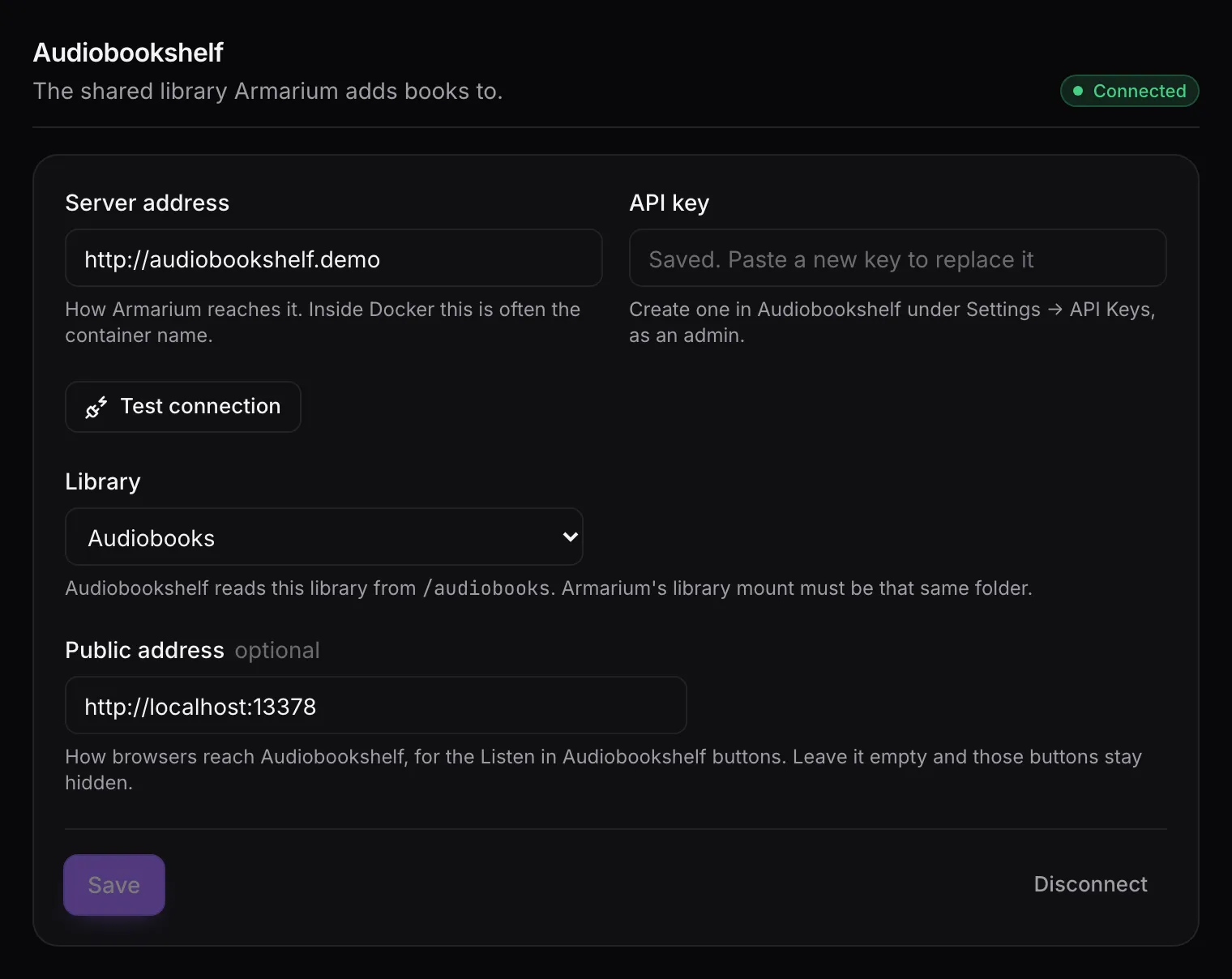
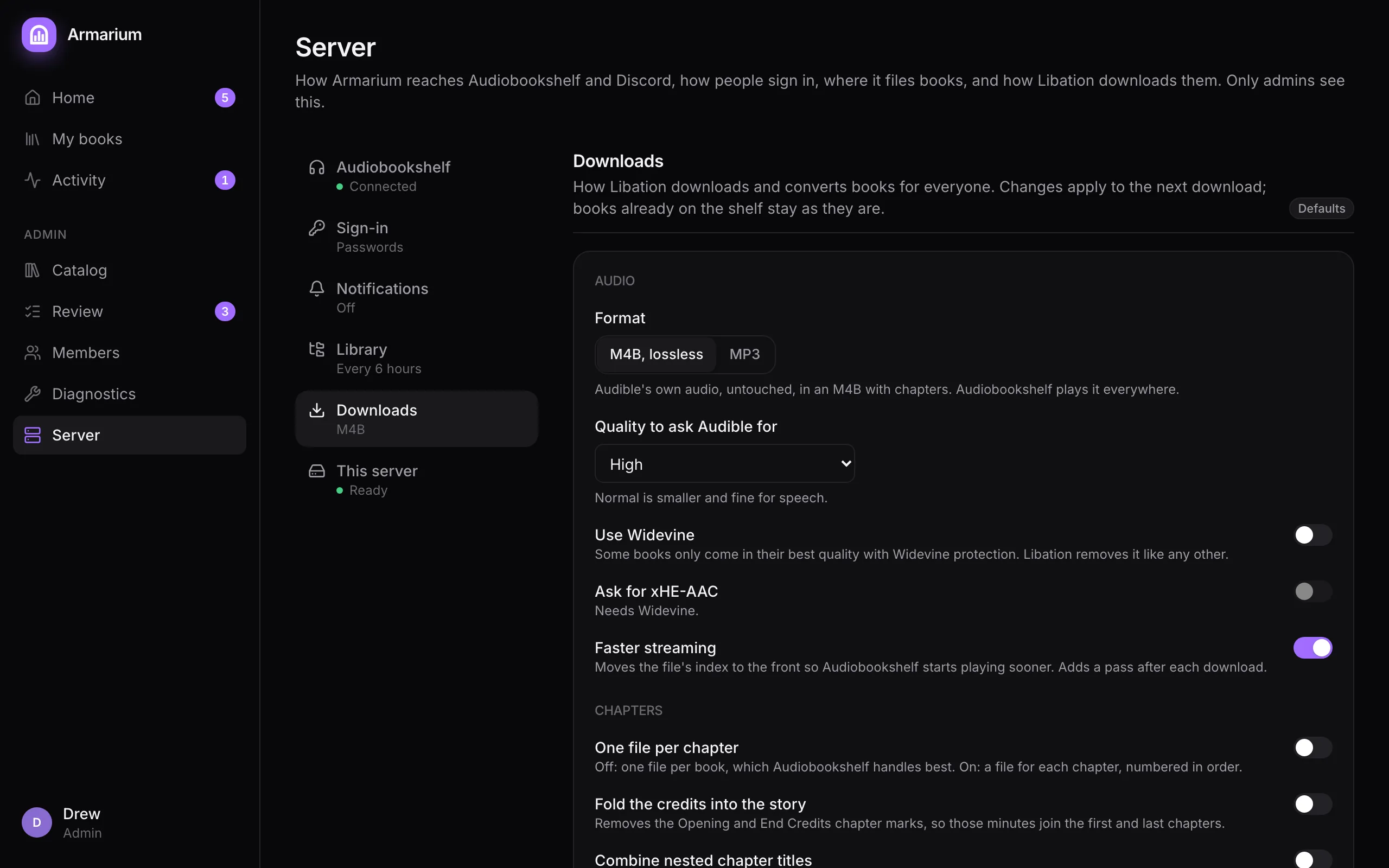
Connect Audiobookshelf. You land on the Server page, which has a tab for each area: Audiobookshelf, Sign-in, Notifications, Library, Downloads and This server. The line under each tab says where it stands, or that it has unsaved changes. In Audiobookshelf, create an API key under Settings → API Keys (as an admin). Back in Armarium, under Audiobookshelf, enter the address Armarium reaches it at and the key, then Test connection. Pick the book library, add the Public address people open Audiobookshelf at (for the “Listen in Audiobookshelf” buttons), and Save. More in Audiobookshelf.
-
Connect your own Audible account from Settings → Audible. See Connect Audible.
-
Add a book. On My books, press Add to shelf on one title. As an admin your own requests are approved at once, so you can watch it go through Download, Shelve and Match on Home, then find it in Audiobookshelf.
-
Invite people. On Members, make an invite link for each friend and send it. Each link works once. See Members and invites.
Until the essentials are done, Home shows admins a Finish setting up list with a button for each step.
Optional, any time
Section titled “Optional, any time”- Discord notifications
- Single sign-on with your OpenID Connect provider
- Where books land, if your library already follows another layout
- Download settings: MP3, chapter files, and the rest of Libation’s options
- Check Server → This server and back up the keys it lists