
Single sign-on
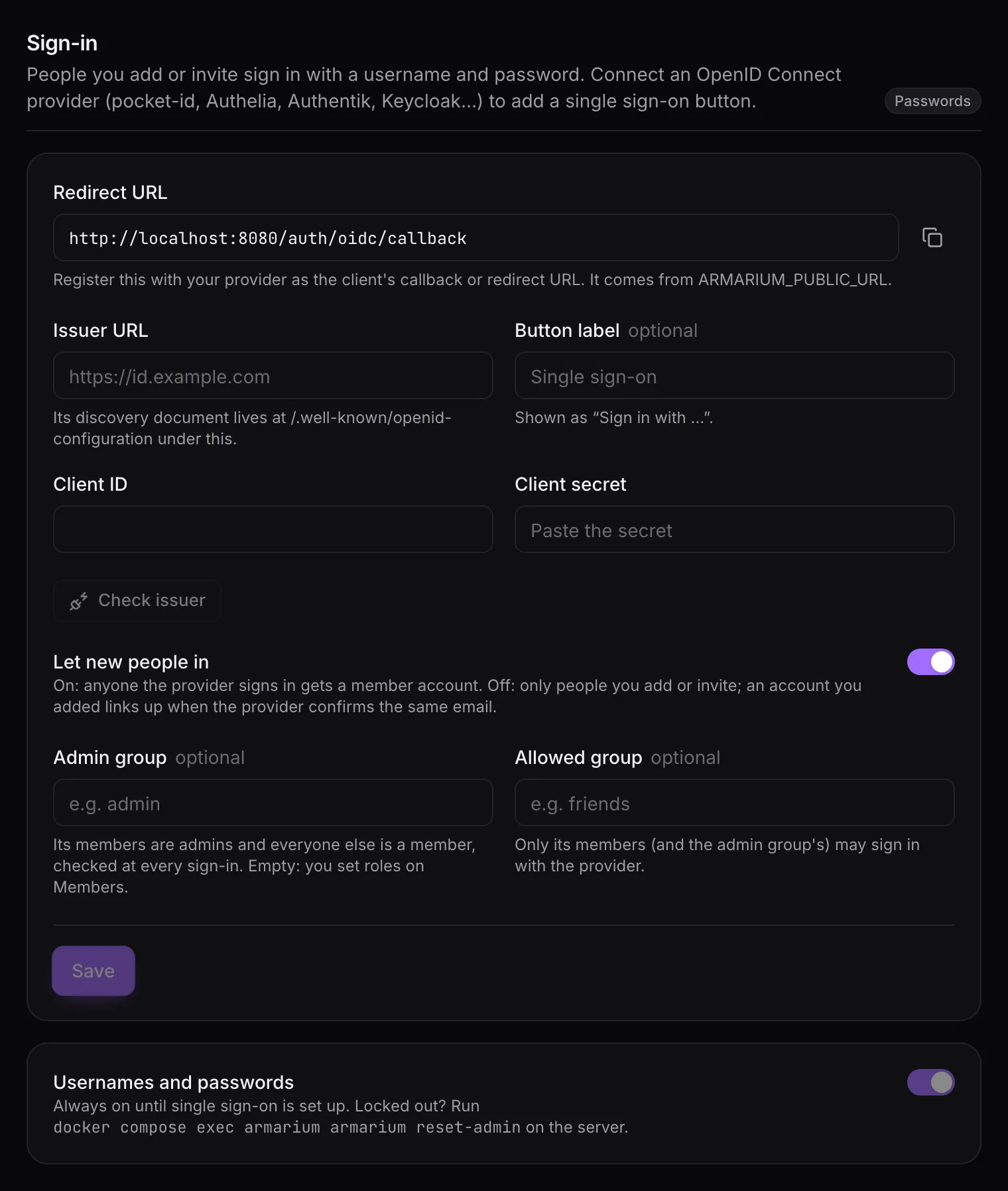
Usernames and passwords always work. If you already run an OpenID Connect provider (pocket-id, Authelia, Authentik, Keycloak, Zitadel…), you can add a single sign-on button next to them. It’s all set up under Server → Sign-in; nothing goes in environment variables.
-
Register Armarium with your provider as a confidential client (one with a secret). Use the Redirect URL shown on the page as its callback; it’s
<ARMARIUM_PUBLIC_URL>/auth/oidc/callback. If the page warns that you’re using Armarium at a different address thanARMARIUM_PUBLIC_URL, fix that variable first. -
Fill in the issuer URL, the address whose
/.well-known/openid-configurationyour provider serves. Check issuer confirms Armarium can read it. -
Paste the client ID and secret. The secret is stored encrypted.
-
Optionally change the button label (“Sign in with …”), then Save.
-
Try it from a private window before relying on it.
Armarium asks for the openid profile email groups scopes, uses PKCE when the provider supports it,
and reads who signed in from the provider’s userinfo endpoint.
Who gets in
Section titled “Who gets in”- Let new people in on: anyone your provider signs in gets a member account the first time.
- Let new people in off: only people you added or invited. An account you added with an email links up the first time the provider confirms that same email as verified.
- An invite link offers the single sign-on button too; using it ties the invite to that sign-on.
Groups
Section titled “Groups”Both are optional and read from the groups claim. Make sure your provider includes it (some need
a groups mapper or scope enabled for the client).
- Admin group: its members are admins, everyone else is a member, re-checked at every sign-in. With it set, the provider decides roles, not the Members page. Armarium never demotes the last admin.
- Allowed group: only its members (and the admin group’s) may sign in with the provider. People outside it are turned away; nothing is deleted.
Turning off passwords
Section titled “Turning off passwords”Once single sign-on works, Usernames and passwords can be switched off, so the sign-in page and invites only offer the button. To prevent locking yourself out, only an admin who has signed in with single sign-on at least once can do this, and single sign-on can’t be removed while passwords are off.