Add books to the shelf
My books is your Audible library. Press Add to shelf on a book to share it.
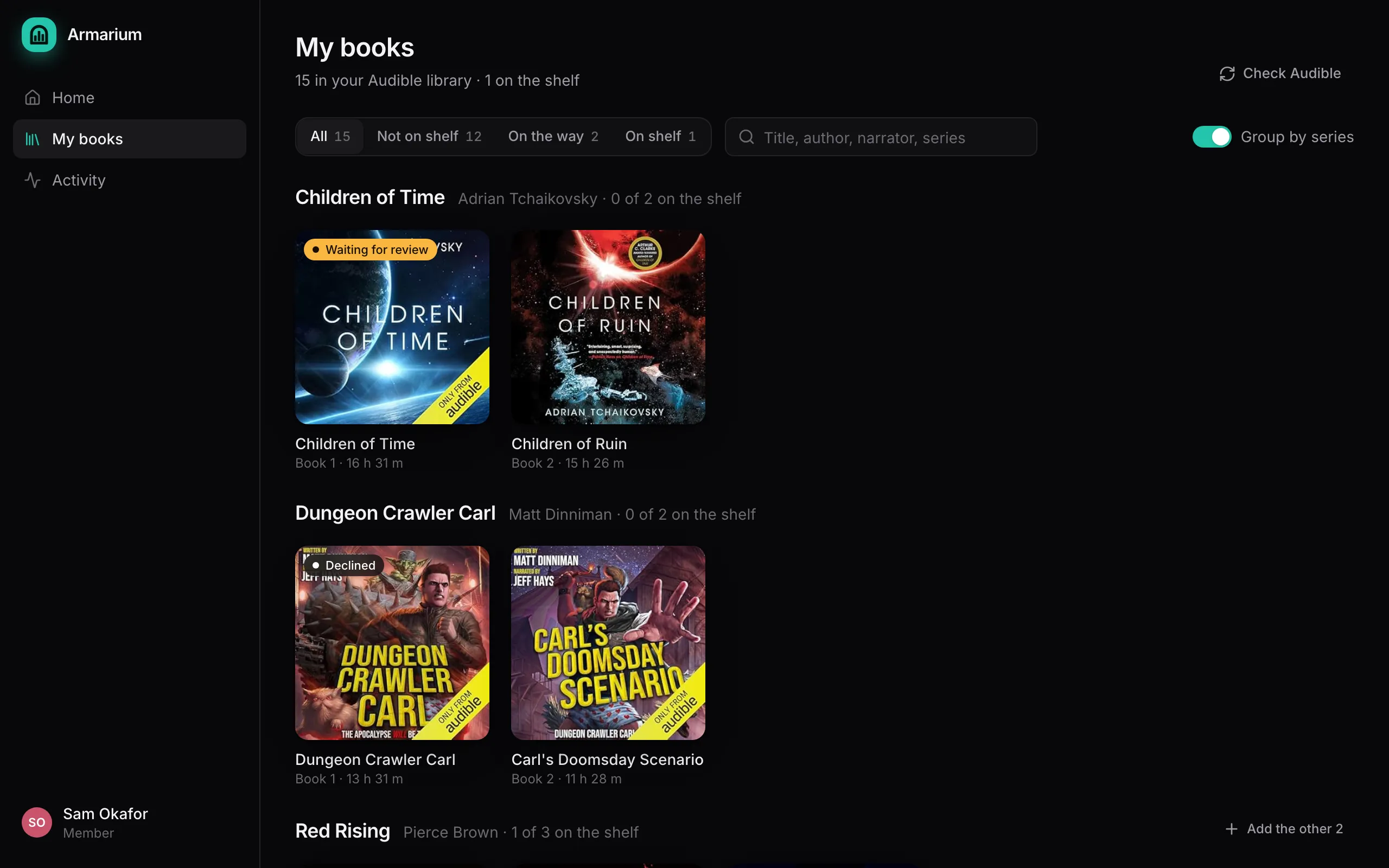
- Filters: All, Not on shelf, On the way, On shelf. The search box matches title, author, narrator and series.
- Group by series (on by default) gathers series you own two or more books of, in reading order. A series with more than one book not yet on the shelf has an Add the other N button.
- Check Audible reads your library now, for a purchase you just made.
What happens when you add a book
Section titled “What happens when you add a book”You’ll see one of these:
- “Asked. The admin will take a look.” It’s waiting for review.
- “Already on the shelf”: the shared library already has it, maybe from someone else. Nothing is downloaded.
- “Added. It’s on its way.” (admins) It’s approved and queued.
A request that may duplicate something already on the shelf shows Being checked until an admin compares the two. You can Withdraw a request while it’s waiting for review.
Following it
Section titled “Following it”Home and Activity show every book on its way, each with four steps: Approved, Download, Shelve, Match. You’ll see where it is in line (“Next up”, “2nd in line”) and how long it has been downloading.
If a download doesn’t finish, the book shows Needs you with the reason, for example “Audible needs you to sign in again”, and a Try again button. Trying again skips review.
Open any book to see its details and buttons for Listen in Audiobookshelf (once it’s on the shelf) and Audible.
Declined and removed books
Section titled “Declined and removed books”- Declined: an admin decided not to add it. Asking again won’t put it back in the queue; talk to your admin.
- Removed from shelf: it was on the shelf, then deleted from Audiobookshelf. Add back asks for it again.